Pixel Knight Idle Sprite Sheet
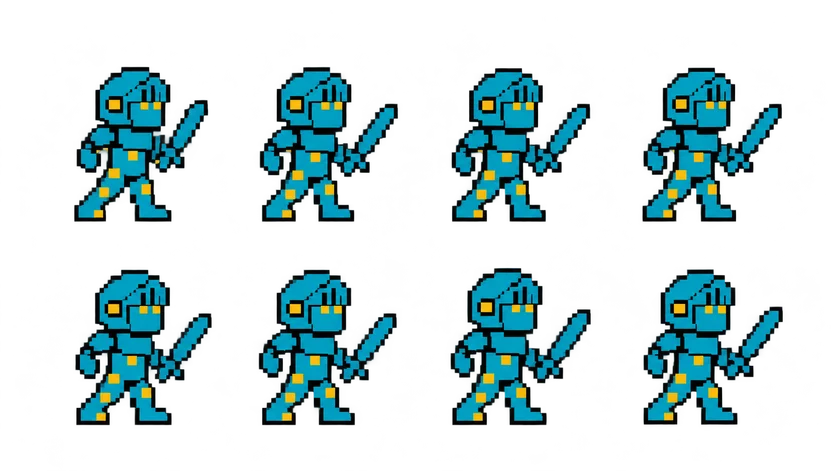
The SpriteGen knight standing guard with his sword raised, shifting his weight in a calm breathing loop. 8 frames in a 4×2 grid, 209×236 px per cell (836×472 PNG, transparent background).
Settings
- Image size
- 836 × 472
- Grid
- 4 × 2
- Cell size
- 209×236
- Frames
- 8
How to use the Pixel Knight Idle Sprite Sheet
This is the resting state of the SpriteGen knight, the teal-armored hero who also stars in the walk, run, jump and spell-cast sheets in this gallery. He stands guard with his sword raised and shifts his weight a little from frame to frame, so the character never looks frozen while the player reads a menu or waits for input.
The PNG is 836×472 pixels with a transparent background. It holds 8 frames on a 4×2 grid: four frames across the top row and four across the bottom, read left to right, top to bottom. Every cell is 209×236 pixels, the same cell size as the knight's walk, run and jump sheets, so his states share one frame size and line up without re-aligning anything.
To slice it, set the frame size to 209×236. In Unity, set Sprite Mode to Multiple and use Slice, Grid By Cell Size in the Sprite Editor. In Godot, open the SpriteFrames of an AnimatedSprite2D, add frames from a sprite sheet and enter 4 horizontal and 2 vertical. In Phaser, load it with this.load.spritesheet and a frameWidth of 209 and frameHeight of 236. An idle loop reads best slowly, around 6 to 8 frames per second.
Use it as the default state of your player's state machine, as the hero standing on a title screen, or as a guard posted at a castle gate. Pair it with the walk cycle so the first key press already feels animated.